How to Download Barclays Bank Statements as CSV (2026 Guide)
Published on October 17, 2026
Quick answer
How do you download Barclays statements in CSV format?
Sign in to Barclays Online Banking, select your account and open all transactions. Choose a date range, search for the transactions, then look for the Export All option and select CSV if it is available. If you need an older statement, check the PDF statements available through your account.
The exact options may vary by account and the current Online Banking interface. Follow the screenshots and instructions below.
Expert Insight
"Barclays hides the CSV export feature behind several menus, and their mobile app currently lacks CSV support. I’ve documented this 'hidden' method to save you time. As a Senior Web & Security Architect with 18+ years of experience, I ensure our conversion tool handles the specific quirks of Barclays formatting—like the missing year data—with 100% privacy."
— Pankaj Jasoria, Creator of BankStatementConverterAI
How to Download Barclays Bank Statements as CSV (Hidden Method)
Many users believe Barclays only offers PDF downloads. However, if you use the Online Banking (Desktop) version, you can export your data. Note: This feature is currently not available on the Barclays mobile app.
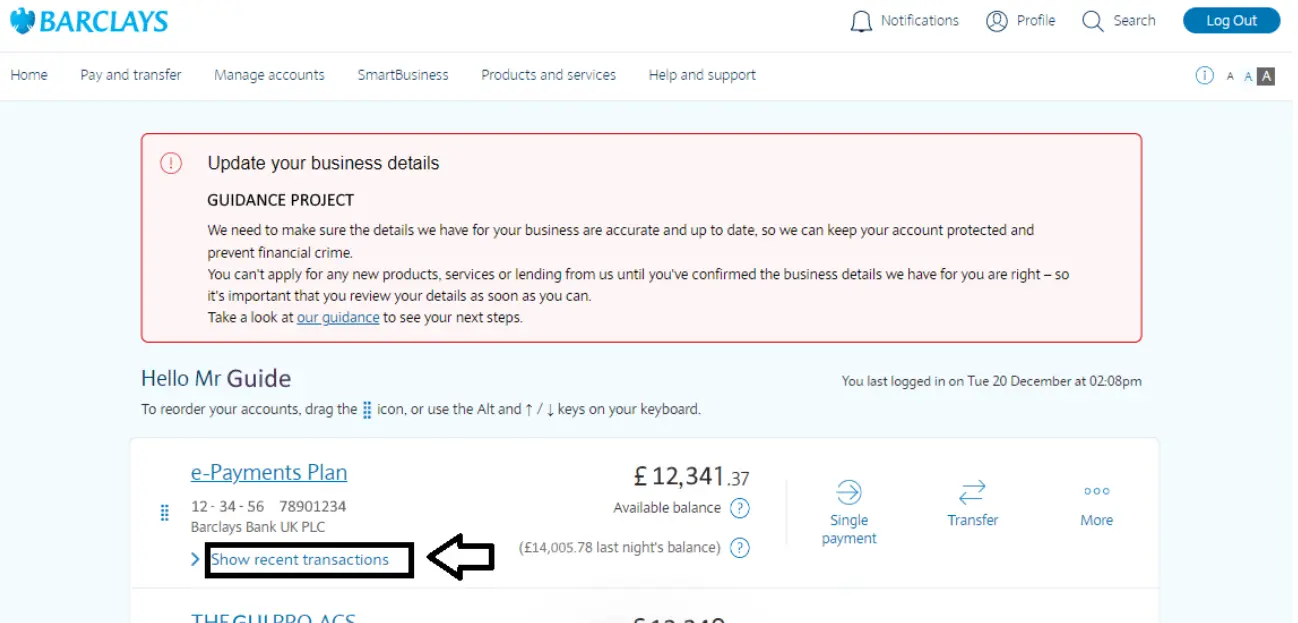
1 Log In & Select Account
Sign in to Barclays Online Banking. Click on "Show recent transactions" for the specific account you need.
2 View All Transactions
Scroll to the very bottom of your recent list and click the "View All Transactions" button.

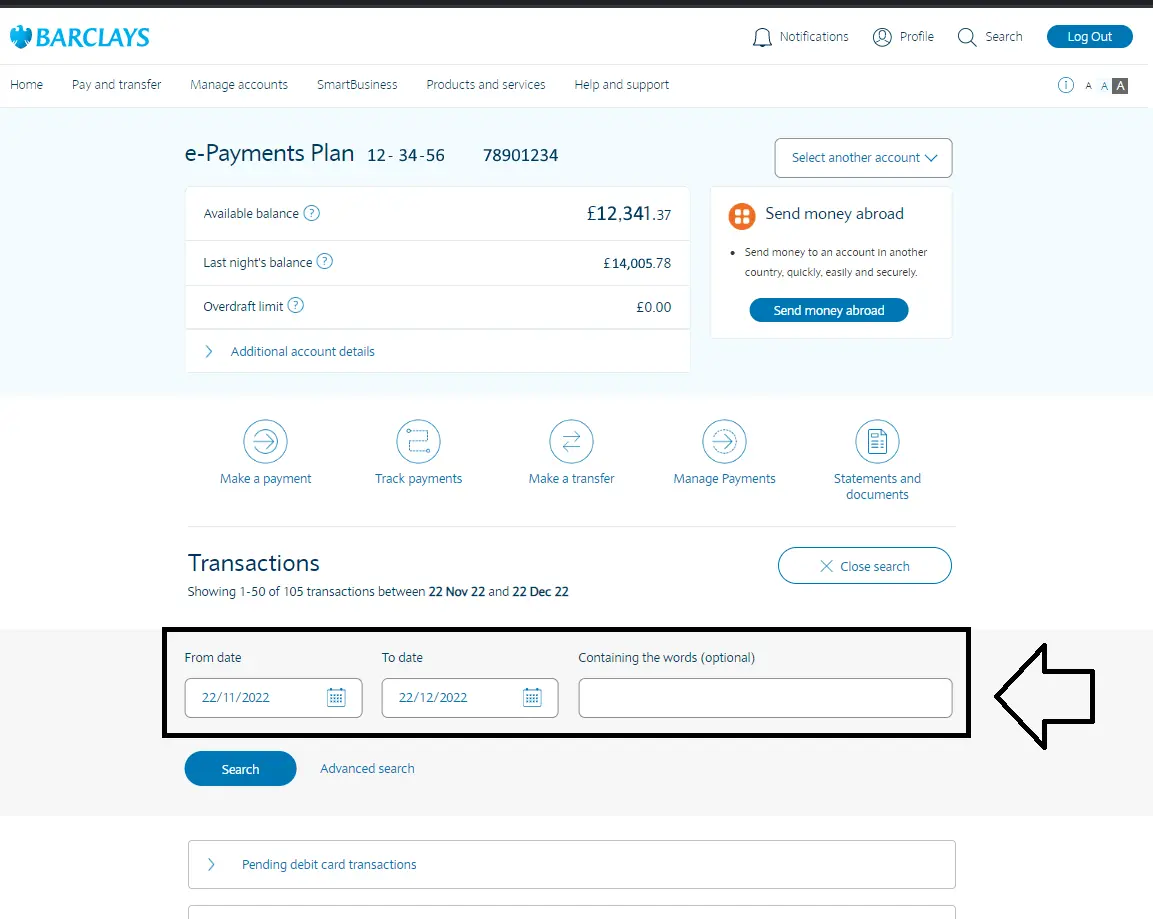
3 Search by Date Range
Select your start and end dates. Click "Search" to refresh the transaction list.
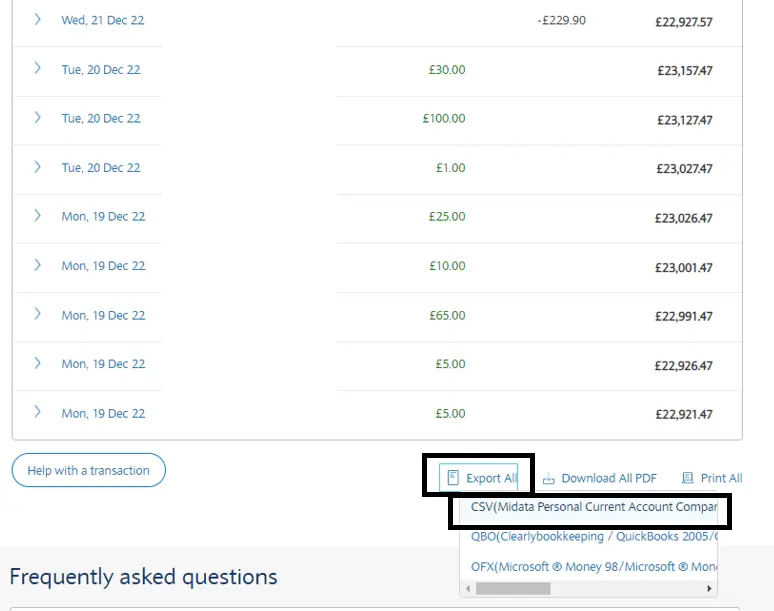
4 Export to CSV
Scroll to the bottom of the page again. Look for the small link that says "Export All" and select CSV .
How to Check Your Barclays CSV File
After downloading your CSV file, open it in Excel or another spreadsheet application. Before using it for bookkeeping, reconciliation or reporting, check the following:
- Confirm that the first and last transaction dates match your selected date range.
- Check that transaction descriptions, dates and amounts are present.
- Make sure money paid in and money paid out are interpreted correctly.
- Compare the transaction totals and closing balance with the available bank records, where applicable.
- Check how Excel interprets dates and decimal values before importing the file into accounting software.
CSV layouts can vary. Do not assume that every export contains the same columns or represents balances in the same way.
Barclays CSV vs PDF Statements: What's the Difference?
Both formats can be useful, but the right choice depends on what you need to do with your bank records.
| Task | CSV export | PDF statement |
|---|---|---|
| Analyse transactions in a spreadsheet | Usually suitable | May need conversion |
| Work with older statement periods | Depends on available export options | Use the historical statements available to you |
| Keep a copy of the statement document | Contains exported transaction data | Preserves the statement document |
| Prepare data for bookkeeping | May be ready for import after checks | Can be converted to a spreadsheet |
What If You Cannot Find the Barclays CSV Download Option?
1. Check the available options in Online Banking
Make sure you have opened the correct account and its full transaction list. The available actions may depend on the account and the current interface. Follow the options actually displayed to you.
2. Need transactions from an older period?
Check the historical statements available through your account. If the transactions you need are not available through the CSV export, a downloadable PDF statement may be an alternative.
3. Only have a PDF statement?
You can use a bank statement converter to extract transaction data into Excel or CSV. Review the converted dates, descriptions and amounts against the original statement before using the data.
4. Using the Barclays mobile app?
If you cannot find a CSV export option in the app, check the available features in Online Banking through a browser. Do not assume that options in the app and browser are identical.
Why Convert Barclays PDF to Excel Instead?
While the direct CSV method works for recent data, it has three major flaws that our AI converter solves:
- The "Missing Year" Bug: Barclays CSV exports often only show "DD Mon" (e.g., 15 Dec). Our AI parses the full statement to ensure the correct year is added to every row for accounting accuracy.
- 60-Day Limit: Barclays often restricts CSV downloads to the last 60-90 days. If you need older data, you must use their PDF archives.
- App Exclusivity: If you only have access to your phone, you can't export CSVs. You can, however, screenshot or download the PDF and upload it to our tool.
How to Convert a Barclays PDF Statement to Excel or CSV
If you have a Barclays PDF statement and need its transactions in a spreadsheet, you can use the following workflow:
- Download the relevant PDF statement through your Barclays account.
- Open the bank statement conversion tool.
- Upload the PDF and select your required output format, such as Excel or CSV.
- Download the converted file when processing is complete.
- Compare the output with the original PDF, especially transaction dates, amounts and totals.
This is useful when you need to analyse historical transactions, organise records for bookkeeping or prepare transaction data for further review. Conversion results should always be checked before they are used for financial reporting.
Zero-Retention Security
Your Barclays financial data is never stored. We use ephemeral memory processing—meaning your files are deleted the moment you finish your conversion.
Frequently Asked Questions
How do I download Barclays statements in CSV format?
Sign in to Online Banking, select your account, open all transactions, choose a date range and look for Export All. Select CSV if the option is available for your account.
Can I download a Barclays CSV file using the mobile app?
The available download options can differ between the mobile app and Online Banking in a browser. If you cannot find CSV export in the app, check Online Banking for the options available to your account.
Can I convert a Barclays PDF statement to Excel?
Yes. A bank statement converter can extract transaction data from a PDF and prepare it for Excel. Check the converted data against the original statement before relying on it.
Can I download older Barclays transactions as CSV?
The date range available through CSV export can depend on your account and the current banking interface. Check your export options and the historical PDF statements available through your account.
Can I open a Barclays CSV file in Microsoft Excel?
Yes. Excel can open CSV files. Check that transaction dates, decimal values and amounts have been interpreted correctly after opening the file.
